Are you finding that your MyFitnessPal app is adding extra calories from exercise, making it tricky to track your food intake accurately? Maybe you want to stop exercise calories from affecting your daily totals or simply prefer to log your workouts manually.
Whatever your reason, knowing how to stop exercise in MyFitnessPal can help you take full control of your calorie counts and reach your goals with confidence. You’ll learn simple, step-by-step ways to turn off exercise calories, disconnect fitness trackers, and customize your settings—so you can focus exactly on what matters most to you.
Keep reading, and you’ll be ready to manage your MyFitnessPal app like a pro.

Credit: www.reddit.com
Disable Exercise Calories
Disabling exercise calories in MyFitnessPal helps keep your calorie goals steady. This option stops the app from adding calories burned during workouts to your daily allowance. It gives you a clearer view of your food intake without exercise affecting your calorie target.
Follow these simple steps to turn off exercise calories. This is useful for users who want to track food only or keep exercise separate from calorie goals.
Toggle Off Exercise Calories On Mobile
Open the MyFitnessPal app on your phone. Tap the “More” button at the bottom right. Scroll down and select “Goals.”
Find the “Exercise Calories” section near the bottom. Switch the toggle to off. This stops exercise calories from adding to your daily calorie goal.
Save the changes and return to the main screen. Your calorie goal will no longer include exercise calories.
Adjust Activity Level To Sedentary
Go to “Settings” or “Profile” in the app. Tap “Daily Nutrition Goals” or “Activity Level.”
Set your activity level to “Sedentary.” This setting assumes minimal physical activity. It prevents MyFitnessPal from increasing calorie goals based on exercise.
Confirm the changes. This method works well alongside disabling exercise calories for a fixed calorie goal.

Credit: blog.myfitnesspal.com
Disconnect Fitness Trackers
Disconnecting fitness trackers from MyFitnessPal helps stop automatic exercise logging. This step prevents exercise data from syncing with your app. It gives you control over what appears in your exercise diary. Follow simple methods to disconnect your devices and pause exercise tracking.
Remove Connected Apps
Open MyFitnessPal and go to the settings menu. Find the section called “Apps & Devices.” Here, you see all linked apps and trackers. Select the app or device you want to disconnect. Tap “Remove” or “Disconnect” to unlink it from MyFitnessPal. This stops exercise data from syncing automatically.
Turn Off Phone Fitness Permissions
Access your phone’s settings to manage app permissions. Find the MyFitnessPal app in the list. Tap on it and go to permissions or app access. Disable permissions for fitness tracking or health data. This action prevents MyFitnessPal from accessing your phone’s fitness data. It stops exercise tracking from being recorded automatically.
Delete Exercise Entries
Deleting exercise entries in MyFitnessPal helps keep your activity log accurate. This step is useful if you added a workout by mistake or want to adjust your daily calorie count. Removing these entries is simple on both the mobile app and the website. Follow the instructions below to delete unwanted exercises and manage your fitness data effectively.
Delete Workouts On Mobile App
Open the MyFitnessPal app on your phone. Tap the “Diary” tab at the bottom. Scroll to the exercise section for the day you want to edit. Find the workout entry you wish to remove. Swipe left on the workout or tap the pencil icon to edit. Select the trash bin icon to delete the exercise. Confirm the deletion to remove the workout from your diary.
Remove Exercises On Website
Log in to your MyFitnessPal account on a web browser. Click on the “Diary” tab in the top menu. Scroll down to the exercise section for the day. Locate the exercise entry you want to delete. Click the “Edit” button next to the exercise. Hit the “Delete” option in the pop-up window. Confirm to erase the workout from your daily log.
Prevent Automatic Calorie Adjustments
MyFitnessPal often adjusts your calorie goals automatically based on your recorded exercise. This feature can cause confusion for users who want to track food intake without adding extra calories from exercise. Preventing these automatic calorie adjustments keeps your daily calorie target steady. It helps to maintain accurate food tracking without the distraction of fluctuating calorie limits.
Disable Premium Exercise Calorie Adjustment
MyFitnessPal Premium users can enable or disable exercise calorie adjustments. To stop automatic calorie changes, access the settings for exercise calorie adjustments. Turn off the feature that adds calories from exercise to your daily goal. This action prevents extra calories from exercise appearing in your daily allowance. It keeps your calorie target consistent, no matter how much you exercise.
Manage Step And Activity Tracking
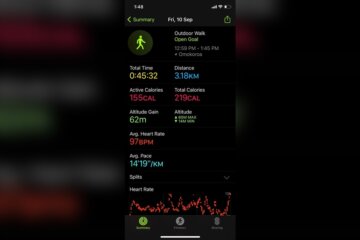
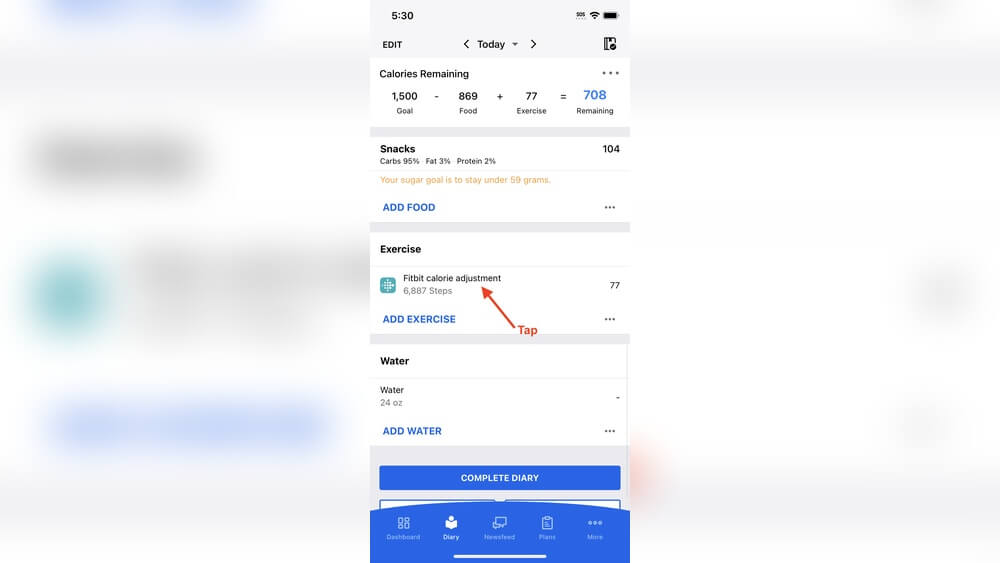
MyFitnessPal syncs with devices like Fitbit or Apple Health to track steps and activity. These steps can add calories to your daily goal automatically. To stop this, turn off step syncing in the app settings. Manage connected apps and devices to control how activity data affects calorie goals. Disabling this helps you avoid unexpected calorie increases from your daily movements.
Credit: support.myfitnesspal.com
Frequently Asked Questions
How Do I Stop Exercise On Myfitnesspal?
To stop exercise on MyFitnessPal, go to More > Goals > Exercise Calories and toggle it off. This prevents exercise calories from adjusting your daily goal. Alternatively, disconnect fitness trackers in Settings to stop automatic exercise entries. Adjust your activity level to “Sedentary” if needed.
How Do I Remove A Workout From Myfitnesspal?
To remove a workout from MyFitnessPal, open More, tap your username, then My Items. Select the exercise, tap the pencil icon, and delete it using the trash icon.
How To Stop Lose It From Adding Exercise Calories?
To stop Lose It from adding exercise calories, go to Profile > Devices and disable Calorie Bonus and Workouts. This prevents exercise calories from being added.
What Is The Biggest Downside Of Myfitnesspal?
The biggest downside of MyFitnessPal is its calorie recommendations often lack accuracy, affecting diet and fitness tracking reliability.
Conclusion
Stopping exercise tracking in MyFitnessPal helps keep your calorie count accurate. Simply turn off the “exercise calories” option in your goals. This prevents extra calories from being added to your daily allowance. Removing or editing exercises is easy through the app’s exercise log.
Doing this keeps your food tracking simple and precise. Now, you can focus on your diet without confusing calorie boosts. Keep your progress clear and straightforward. Small changes like this make a big difference in using MyFitnessPal effectively.

“As the voice behind Radiant Glow Health, we are dedicated to being your ultimate wellness and vitality companion. Our mission is to inspire and guide you on your journey to a healthier and more vibrant life. Join us as we explore holistic health practices and empower you to radiate wellness from within.”